
How to Change Password on WHXEX Official Website (Web Version)
Please note: For security reasons, after changing your password, withdrawals, C2C selling, and payment services will be disabled for 48 hours.
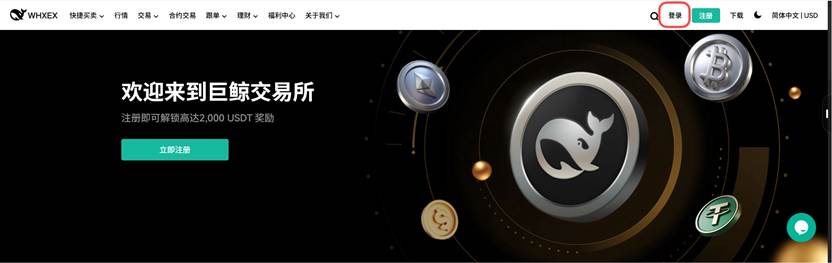
1. Go to the WHXEX official website and click [Log In]
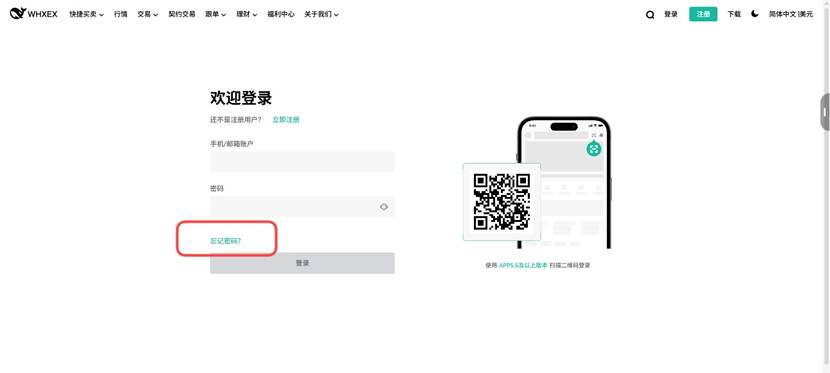
2. Click [Forgot Password?]
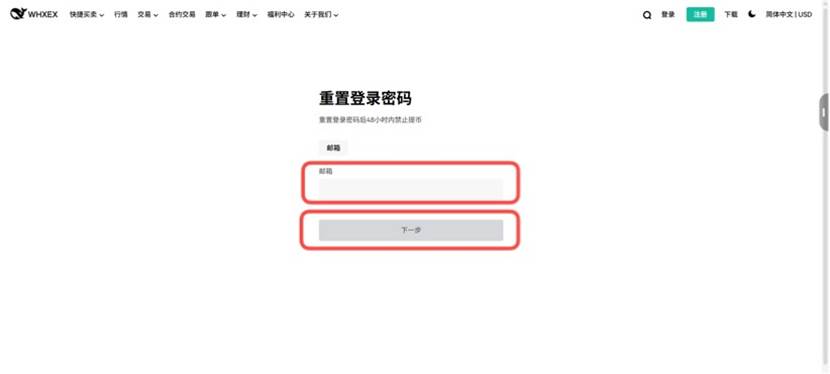
3. Enter your email or phone number and click [Next]
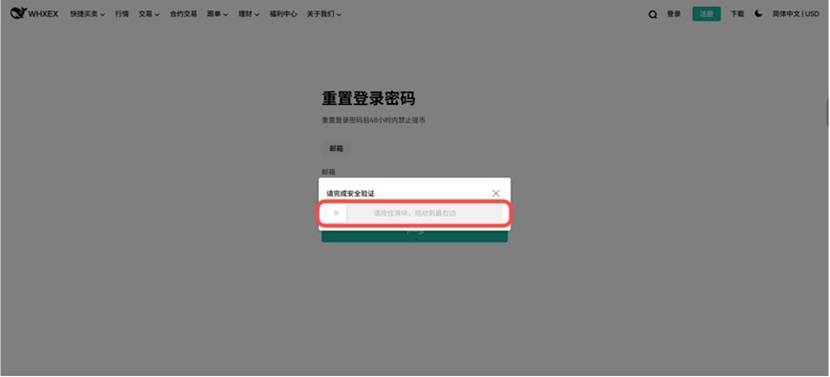
4. If a security verification appears, follow the prompt to [Slide the slider to the right] to complete the security verification.
5. Complete the required security verification and click [Confirm]
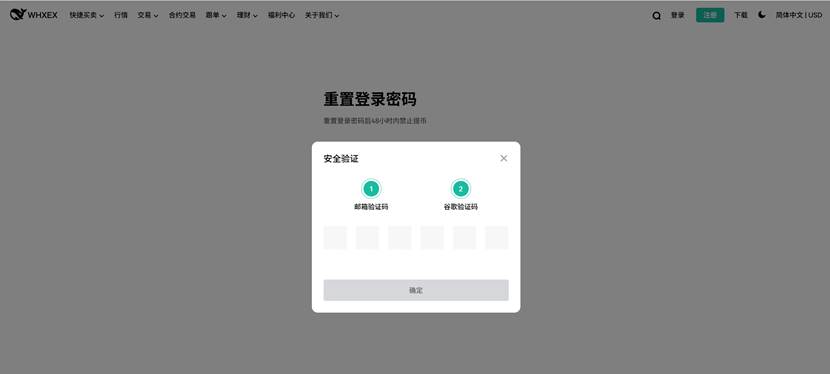
6. Enter a new password and click [Submit]
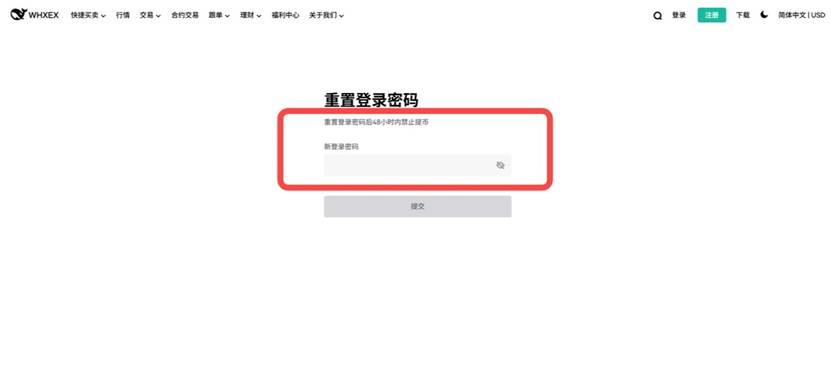
7. Your password has been successfully reset. Please log in to your WHXEX account using the new password.