
How to Enable Google Authenticator for Two-Factor Authentication (2FA) on WHXEX Official Website
What is Two-Factor Authentication (2FA)?
Two-Factor Authentication (2FA) is a multi-layered security mechanism that requires users to verify their identity before accessing their account. This significantly enhances account security and prevents unauthorized access.
2FA is crucial for protecting your crypto assets and WHXEX account. Even if hackers obtain your password, they still need to pass a second verification step (e.g., using Google Authenticator) to access your account, making it much harder to breach.
How to Enable Google Authenticator for Two-Factor Authentication on WHXEX Official Website?
Before you begin, download and install the official Google Authenticator app on your mobile device.
- Log in to your WHXEX account, hover over the 【Profile】 icon, then click 【Account】.
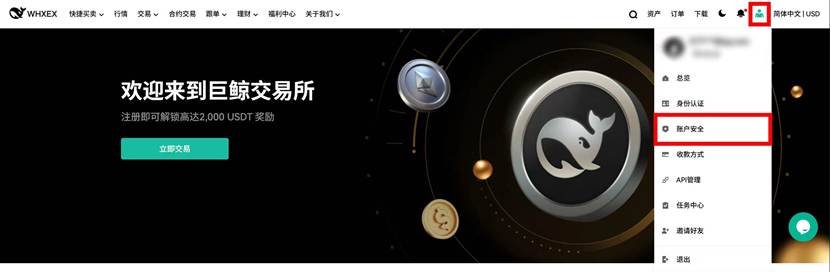
2. Go to 【Account Security】, then click 【Bind】 next to 【Google Authenticator】.

3. The system will display a QR code and a setup key.
Open your Google Authenticator app, tap the 【+】 button, then select 【Scan QR Code】 to scan the provided QR code. If scanning fails, tap 【Enter Setup Key】 to manually input the setup key. A new account named “WHXEX.com” will appear in your Google Authenticator.
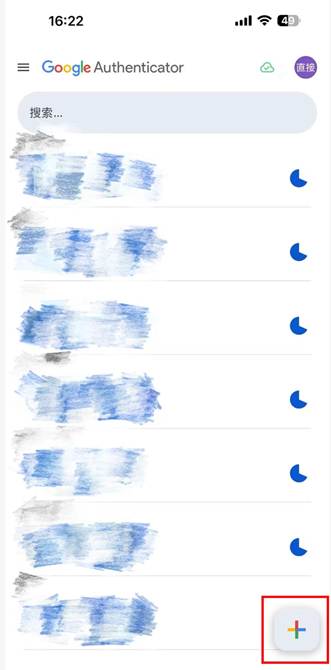
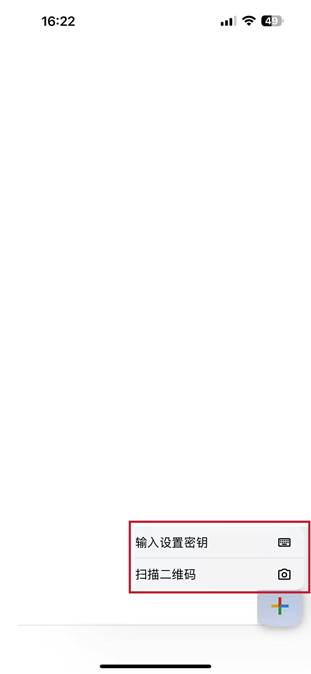
4. Return to the web interface and enter the email verification code along with the 6-digit code generated by the Google Authenticator app to complete the binding.
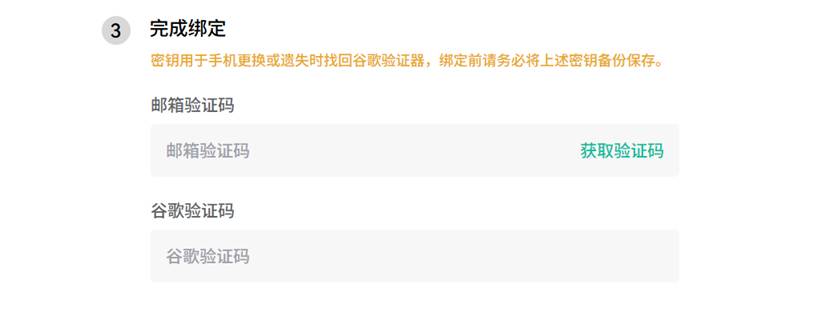
5. You have successfully enabled Google Authenticator to secure your WHXEX account.
